Your Google review link, QR card and request messages
Paste the review link from your Google Business Profile, or your Place ID. Get a clean link, a QR card for your counter and four messages to ask for a review, in formal English or friendly Hinglish.
- Free, no sign-up
- Works on your phone
- Nothing saved unless you ask
1 Your review link
Paste your review link or Place ID to make the link.
Where do I find my review link?
- Sign in to the Google account that manages your Business Profile, then search your business name on Google (or open your profile in the Google Maps app).
- In your profile, choose "Ask for reviews" (on some screens it is "Get more reviews").
- Copy the link it shows. It looks like https://g.page/r/…/review. Paste it in the box above.
No access to the profile? Paste your Place ID instead (a long code that usually starts with "ChIJ"). Your web person can look it up for you.
2 Card colour
Four ways to ask for a review
Your link and business name are filled in. Change [Customer name] before sending.
Rules for getting real reviews
- Ask within 24 hours of the sale or the finished job, while the experience is fresh. One reminder after three days, then stop.
- Never offer a discount, a gift or anything else in return for a review. Google's rules do not allow it, and those reviews can be removed.
- Ask every customer, not only the ones you think are happy. Asking only happy customers is also against Google's rules.
- Never write reviews yourself, and never ask staff, friends or family to. Real reviews from real customers only.
- Reply to every review within a week, good and bad: thank people by name, answer complaints calmly and offer to sort it out offline.
- Make asking one person's job: when the order is delivered or the job is done, they send the link the same day.
Get the review card and all 8 messages on WhatsApp
Your link, the QR card as a print-ready file and all eight messages (both tones) to forward to your team.
Done, .
It is saved. Mayank's team sends it on WhatsApp within one working day (and by email right away, if you added one).
Want help putting this to work in your business? Book a free 30-minute call.
How this works
- The link you paste is checked and tidied on this page: extra tracking bits are removed, and a Place ID is turned into Google's standard "write a review" link. Nothing is fetched from Google.
- The QR code is drawn in your browser by our own code, with a white border and medium error correction so it scans from a printed card.
- The four messages are templates. Your business name and review link are filled in; [square brackets] mark what only you know, like the customer's name. Edit those before sending.
- Nothing is saved unless you send the result to yourself. The share link holds only your public review link and the tone you picked.
Turn this into a system
This tool fixes one piece. The Credibility Builder builds the whole credibility layer of The Self-Running Business System, so it runs without you.
Credibility Builder
Get found and trusted before the first call
See how it works → Free · 30 minutesBook a free call
Talk through your result with Mayank and leave with the one thing to fix first.
Book a free call → Free · 3 minutesAutomation Scorecard
Twelve questions, a score out of 100 and a breakdown across all six layers of your business.
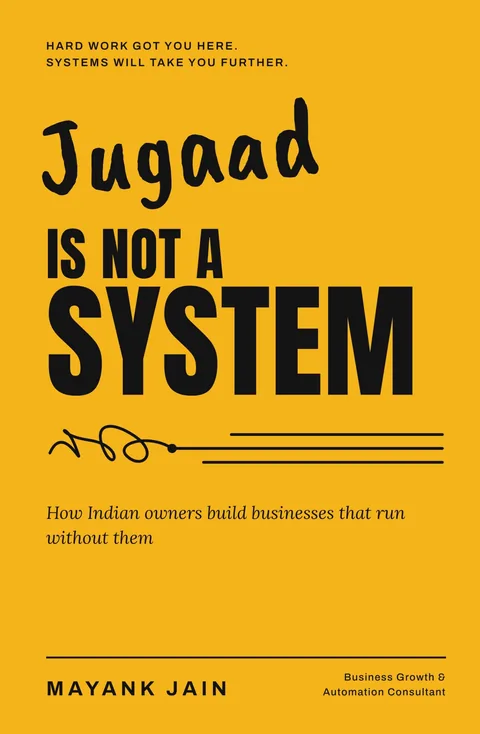
Take the Scorecard →From the book: Template T05, Review Requests and Replies. Read the book: Jugaad Is Not a System
Frequently asked
WhatsApp Chat Link & QR Generator
A wa.me chat link and a print-ready QR code for your counter, card and website.
Phone-Off Test
Switch off your phone for a day: does the business stop? Ten taps, two minutes.
WhatsApp Follow-Up Sequence Builder
A ready 7-message follow-up plan, Day 0 to Day 30, written for your industry.
Google Profile & Website Trust Score
19 quick checks: what a new buyer sees when they look you up, scored out of 100.
Payment Reminder & Receivables Tool
See how much cash is stuck by age, and get polite reminder messages for every stage.
Debtor Days & Working Capital Calculator
Debtor, creditor and inventory days, your cash cycle, and the cash freed by collecting faster.
Sales Hire Payback Calculator
What a new salesperson costs, what they bring once ramped, and the month they pay for themselves.